Version 26.4 gives you a practical way to bring the data saved in the Cloud archive used by earlier versions of the app into Counsel Planner: matters, hearings, meetings, deadlines, notes and cash entries.
It is designed for lawyers who have built up an archive over time and want to continue working with it in the new app. This is not a new connection to the old Cloud service. It is a one-off import, designed to be completed carefully and only once.
Before you begin: three important rules
Take a moment before you start. These three points prevent almost every avoidable issue.
- Use one device only, ideally your primary one. If you use iCloud, the imported data will then reach your other devices automatically.
- Import into a new or empty archive where possible. Repeating the import, or running it on more than one device, can create duplicates.
- Choose a quiet moment. Use a stable Wi-Fi connection and, if your archive is large, keep the device connected to power. Do not close the app or turn off the device while the import is running.
You will also need the email address and password for the Cloud account you used with the previous version. An active subscription is required to start the import.
What is imported
The import retrieves the data available in your previous Cloud archive:
- matters;
- hearings, meetings and deadlines;
- notes;
- cash entries linked to a matter.
Full contact records from the previous app may not be available in the Cloud archive. For cash entries, however, Counsel Planner keeps or creates the counterparty reference whenever that information is available.
1. Open the import tool
Open Settings and tap Import previous Cloud archive. This tool is intended exclusively for data saved by earlier versions of the app.
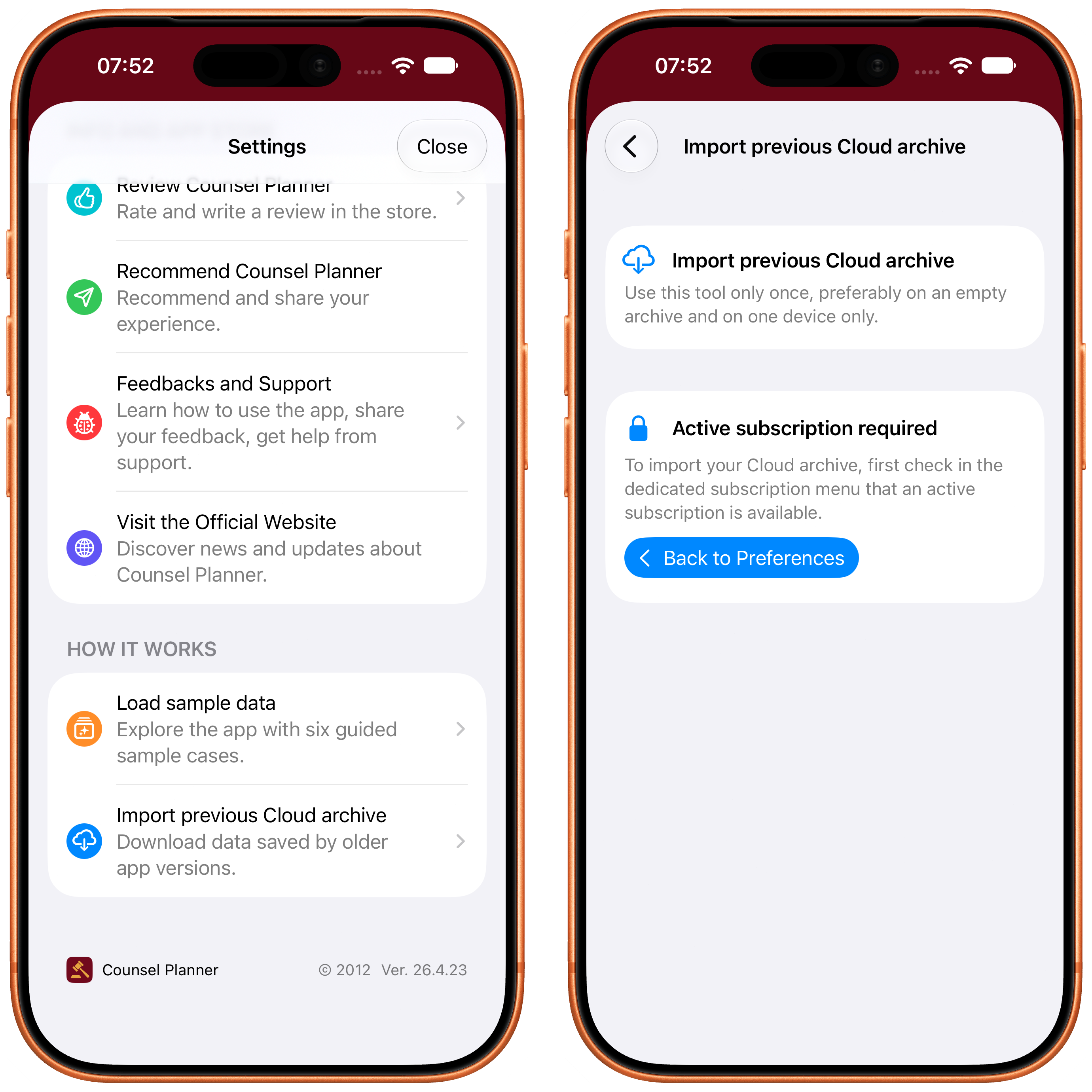
If you do not see the sign-in form, first check that your subscription is active in the dedicated Settings section. Our guide to trying and subscribing to Counsel Planner explains the available plans and how to restore a purchase.
2. Sign in to your previous Cloud account
Enter the Cloud Email and Cloud Password you used with the previous version, then tap Start Import.
These credentials are used only to read your archive for this procedure. They are not stored in the app, and data created in Counsel Planner is never sent to the old Cloud service.
3. Confirm and wait for completion
After you confirm, the app signs in to the previous Cloud archive, downloads the data, prepares it and saves it in Counsel Planner. The on-screen counts update as each stage progresses.
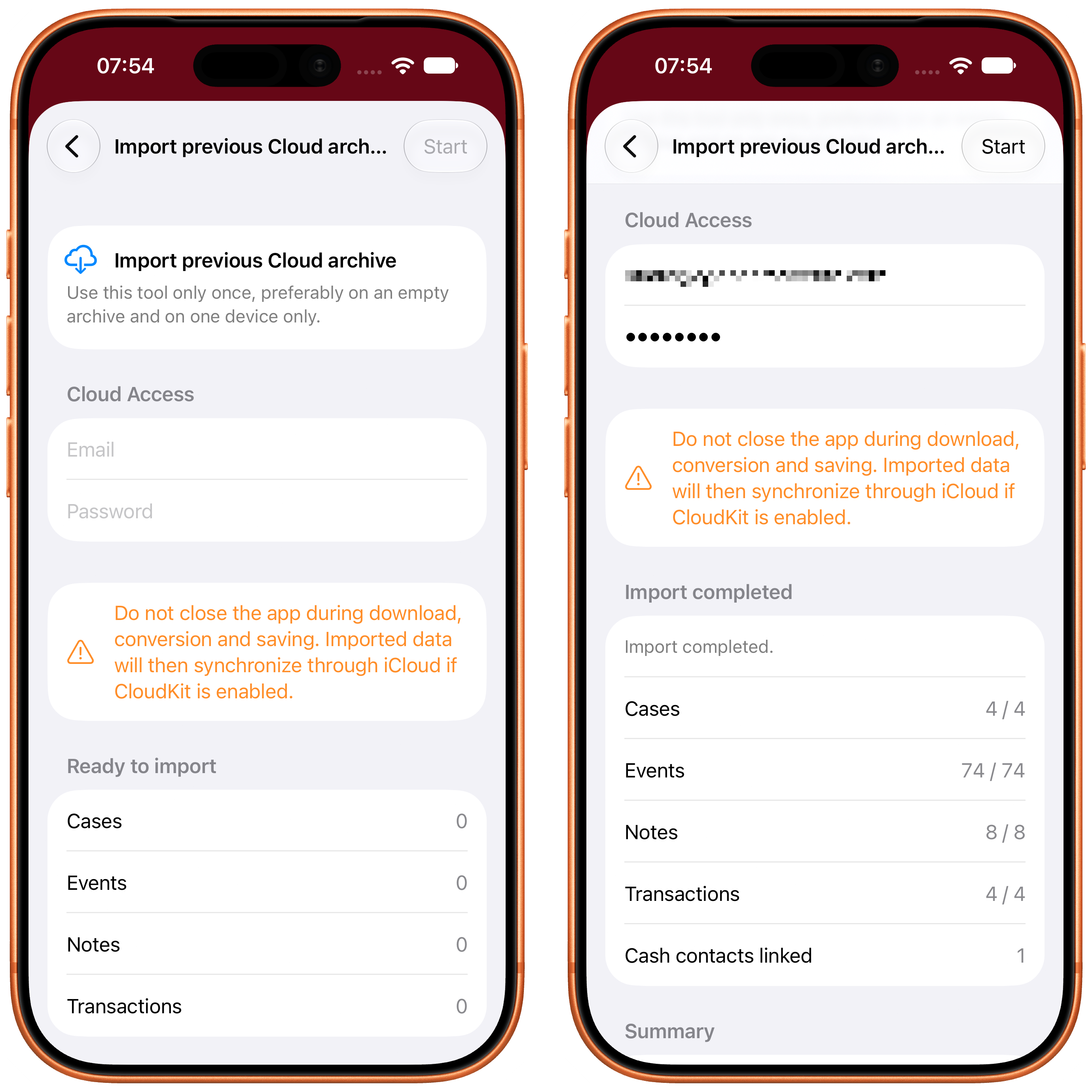
The time required depends on the number of matters, events, notes and cash entries in your archive. A large archive may take several minutes. That is normal.
Important: do not let your device lock during the import. Temporarily turn off Auto-Lock in your device settings by following Apple’s instructions for changing Auto-Lock, or keep the screen awake by touching it from time to time. If the device locks, the import may be interrupted.
Do not close the app, force-quit it from the app switcher, or start the same import on another device. Wait for the final Cleaning temporary data stage as well: this clears the space used while transferring the archive.
4. Review the final summary
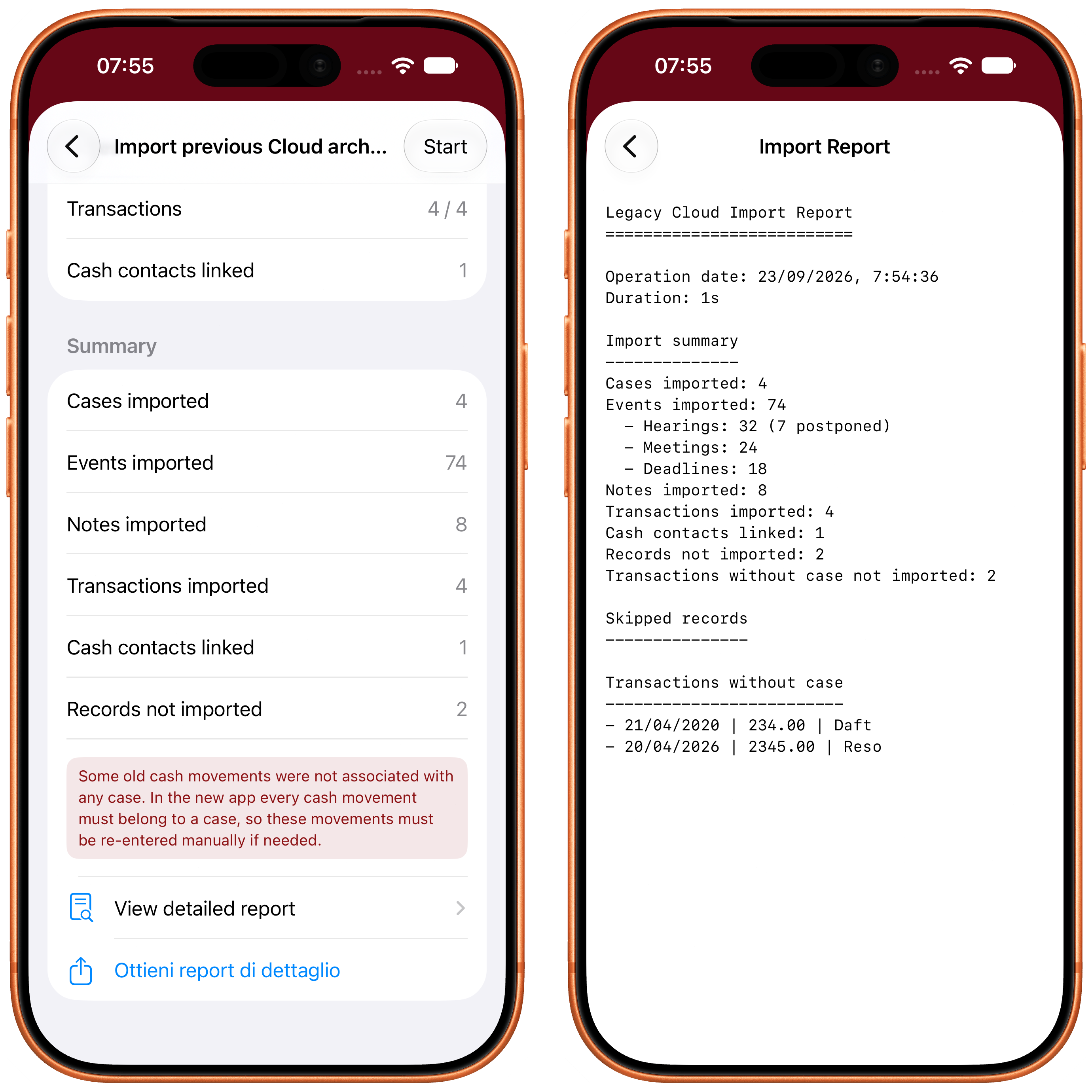
When the import is complete, you will see the number of matters, hearings, meetings, deadlines, notes and cash entries that were imported. The detailed report remains available in the app after you leave the import screen. You can also print it or send it by email, which is useful when you need a working list of items to enter manually.
Some items may not be imported because they are incomplete or cannot be read. In particular, a cash entry from the previous app without an associated matter cannot be transferred: every cash entry in Counsel Planner must belong to a matter. These items are shown in both the summary and the report, so you can re-enter only the ones you still need.
5. Let iCloud catch up on your other devices
If you use iCloud, leave the app open for a few minutes after the import whenever possible. The newly imported data will begin to synchronise to other devices using the same account.
With large archives, this can take time. On your other devices, wait for iCloud to finish synchronising before making extensive changes. Do not run the import again: iCloud will bring across the archive you have already imported.
If something is interrupted
If sign-in fails, check your email address, password and Wi-Fi connection, then try again. If the interruption happens after Counsel Planner has already begun creating data, do not immediately start a second import: part of the archive could be duplicated.
In that case, open or keep the detailed report and contact us before trying again. We will help you work out the safest way to continue.
Questions about the import, or something not working as expected? Write to us at support@counselplanner.app, attaching the detailed report if available — we read everything and reply within one or two business days.