Counsel Planner can keep your deadlines in sync with Apple’s Reminders app. Every deadline you save in the agenda is automatically added to the list of your choice — and when you mark it as complete, the reminder updates itself. No double entry, no risk of missing anything.
First: create a dedicated list in Reminders
To keep your deadlines separate from personal reminders, we recommend creating a dedicated list in Apple Reminders. Open the app, tap Add List and give it a recognisable name — for example Counsel Planner.
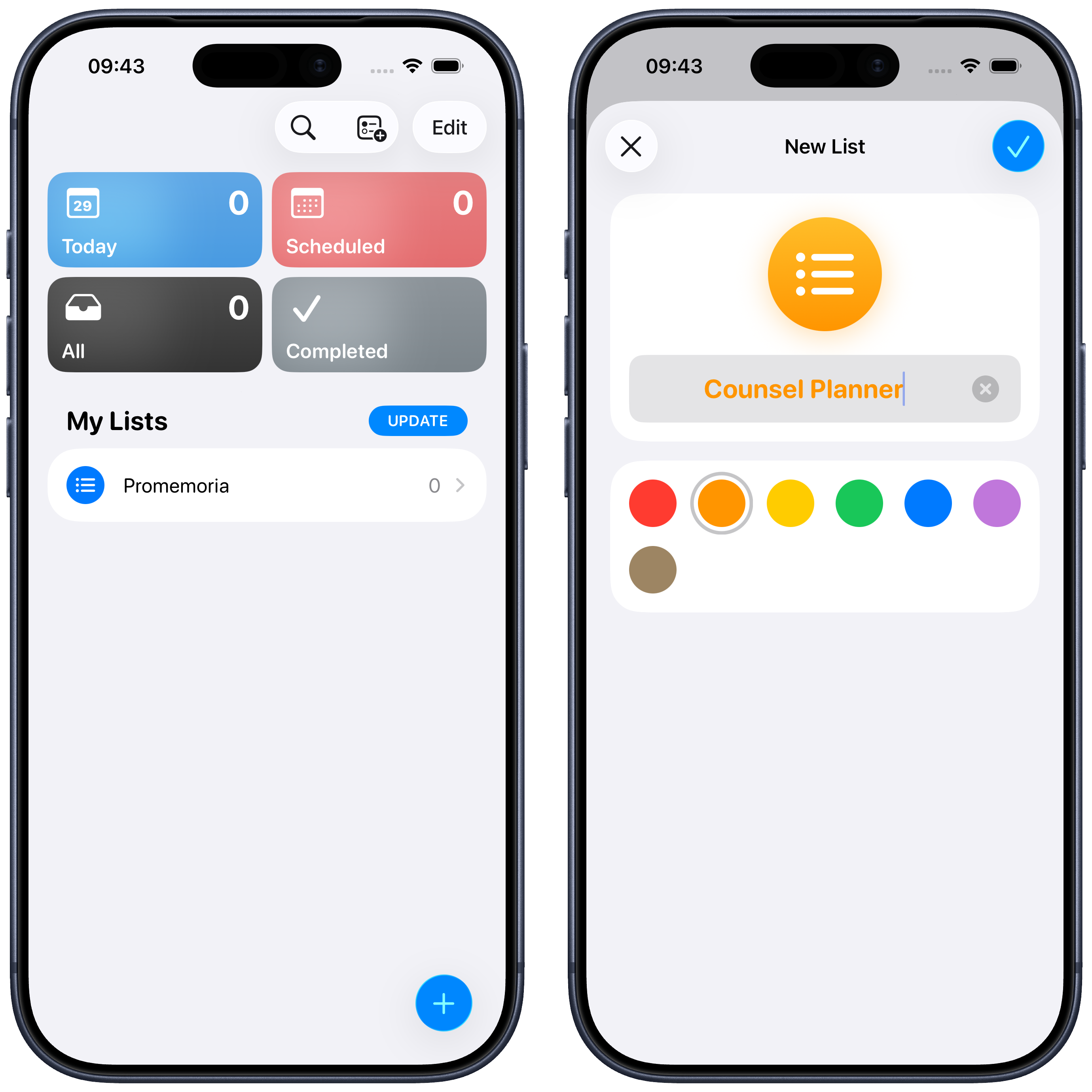
Choose whichever colour you prefer. Once the list is created, go back to the app.
Open Calendar Settings
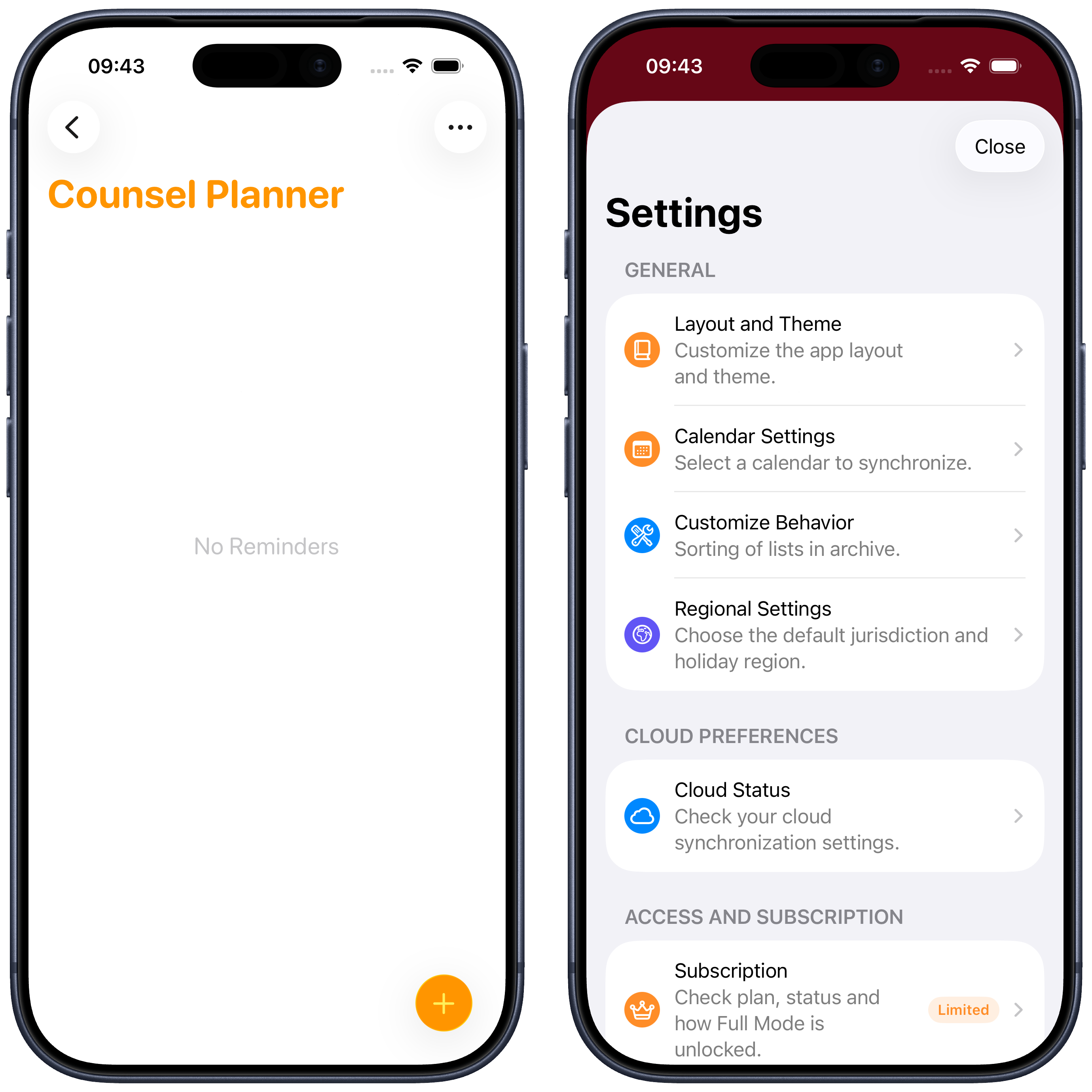
In Counsel Planner, open Settings from the icon in the top right and tap Calendar Settings.
Enable sync and grant permission
In the Calendar Settings screen you’ll find two distinct sections: one for Calendar and one for Reminders. Enable the Sync with Reminders toggle.
The first time you do this, a permission request will appear: tap Allow to let the app access your reminders. Without this permission, sync cannot work.
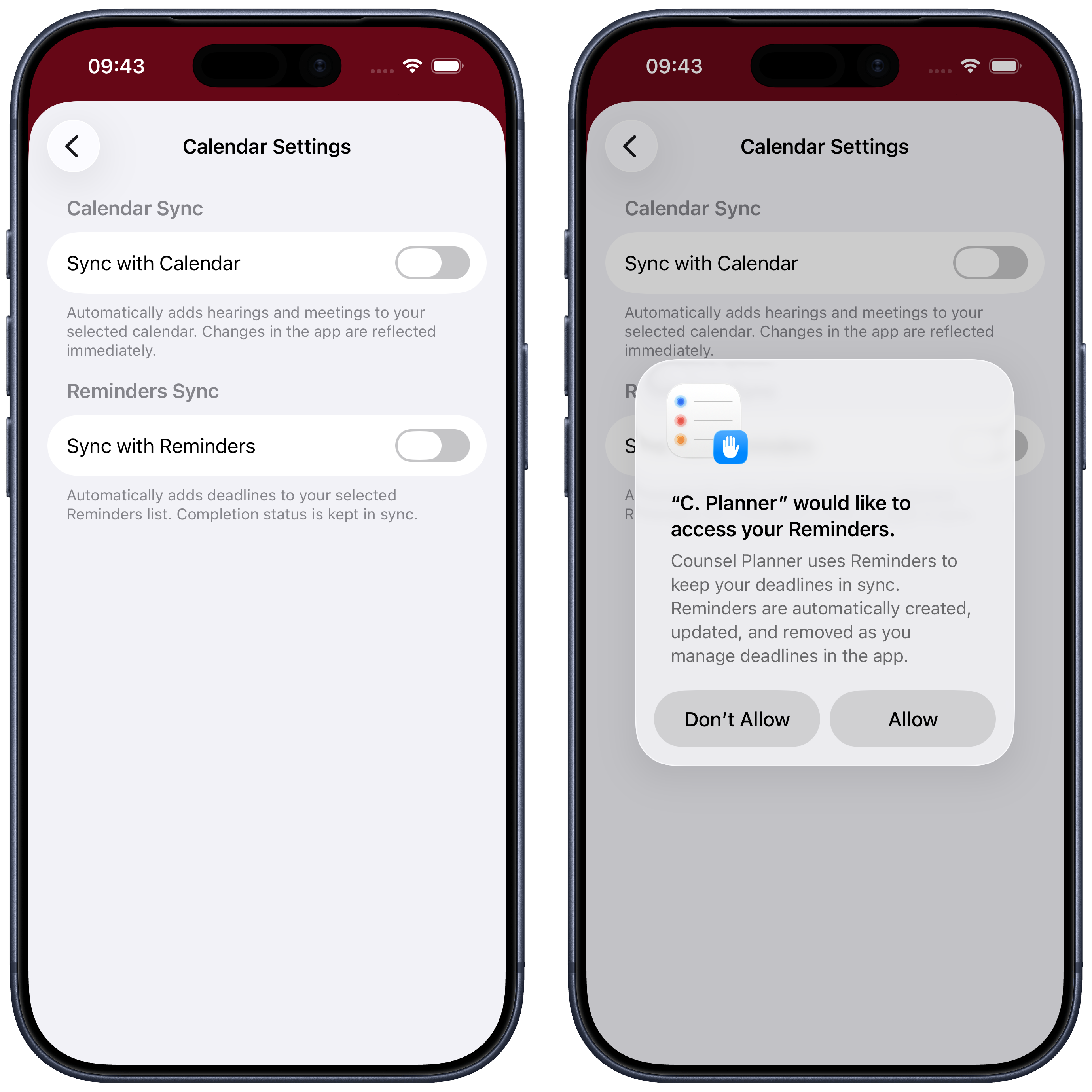
If you accidentally denied the permission, you can go to iOS Settings → Privacy & Security → Reminders at any time and enable access for Counsel Planner.
Select the list
Once permission is granted, the app shows the available Reminders lists. Select the one you created — in our example Counsel Planner — and tap Save.
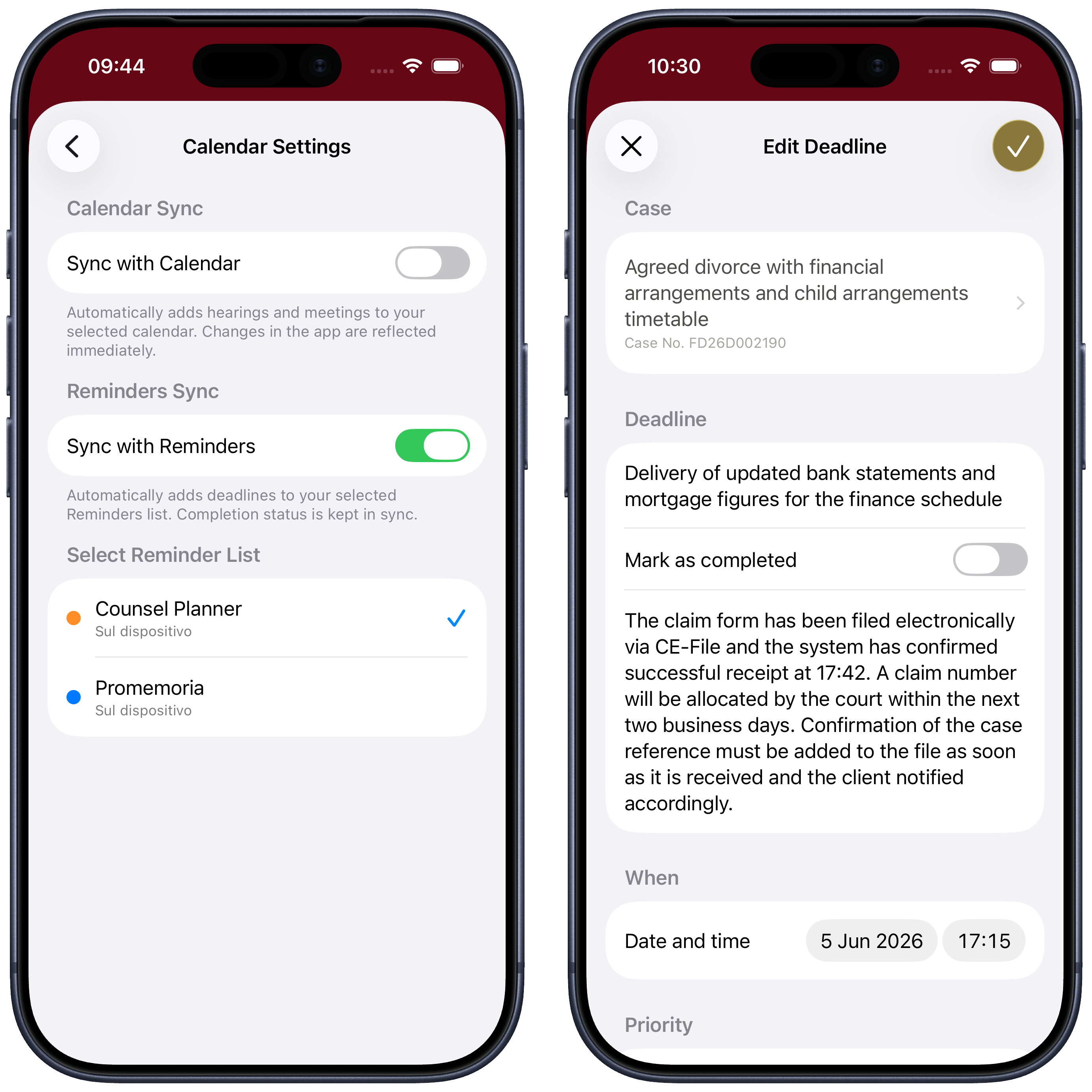
From this point on, every deadline you save in the agenda will be automatically added to that list.
The deadline appears in Reminders
Open or edit a deadline in the app and save it. Switch to Reminders: you’ll find it in the list with the text, date, time and notes you entered.
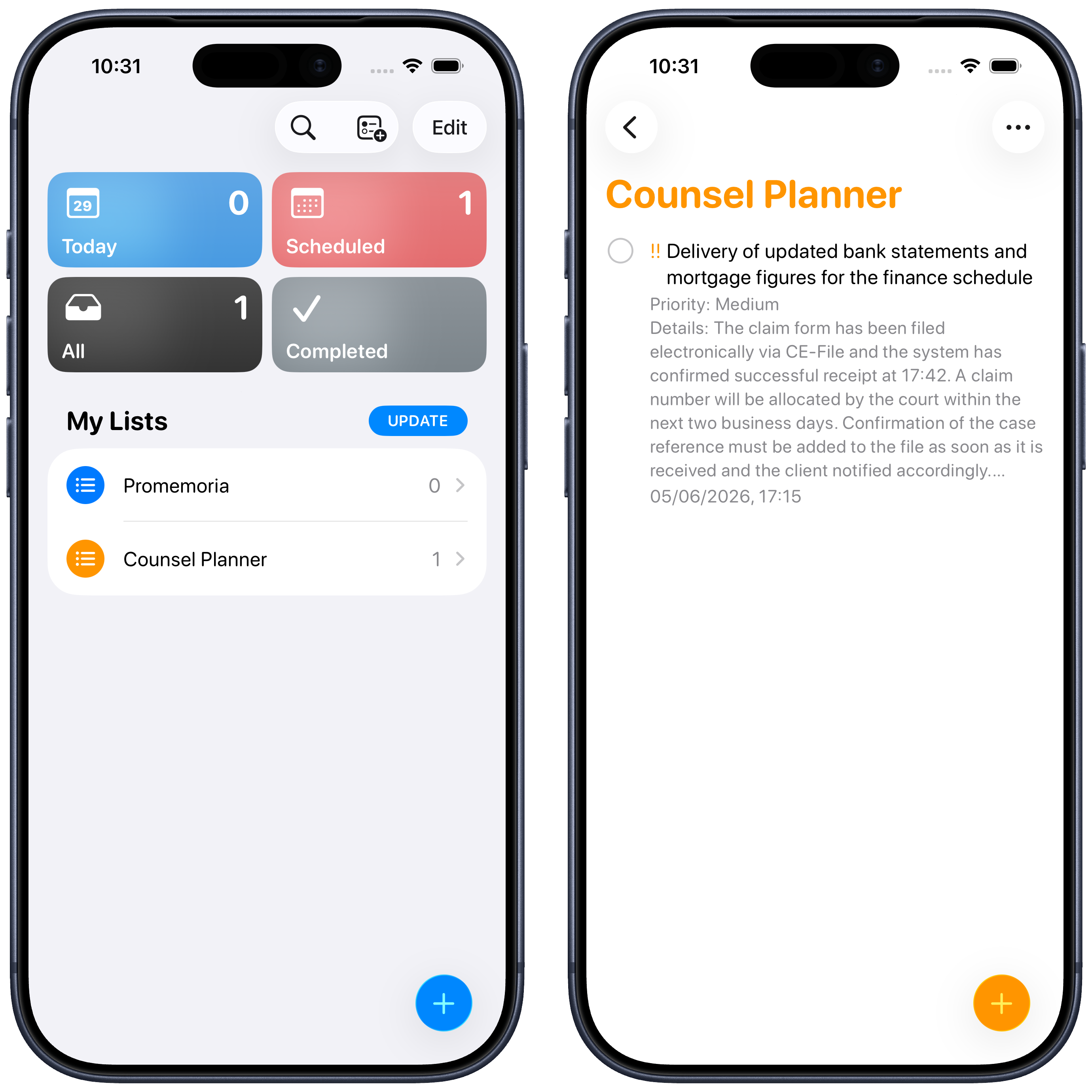
Completion is automatic
When you mark a deadline as complete in the agenda — by enabling the Mark as complete toggle — the corresponding reminder is automatically marked as done in Apple Reminders.
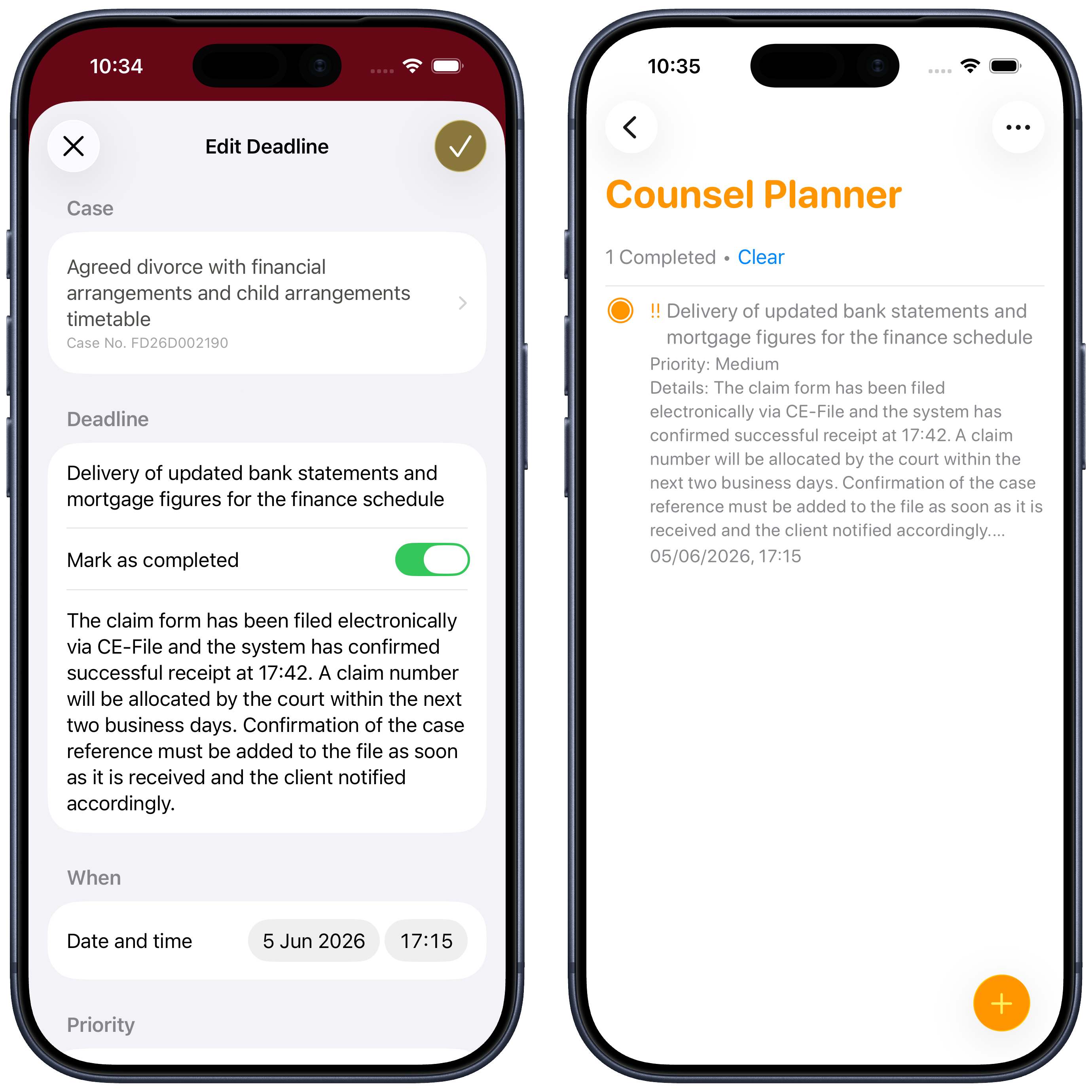
You don’t need to do anything in the Reminders app: the update happens automatically.
Share deadlines with colleagues
If you work in a team, you can share the Reminders list with them directly from Apple Reminders — via iCloud, Google or any other compatible provider. This way, deadlines you enter in the agenda will be visible to everyone sharing that list, with no additional apps required on their end.
Calendar sync
In addition to Reminders, Counsel Planner can also sync hearings and meetings with Apple Calendar. You’ll find all the details in the Apple Calendar sync guide.
Questions or something not working as expected? Write to us at support@counselplanner.app — we read everything and reply within one or two working days.