
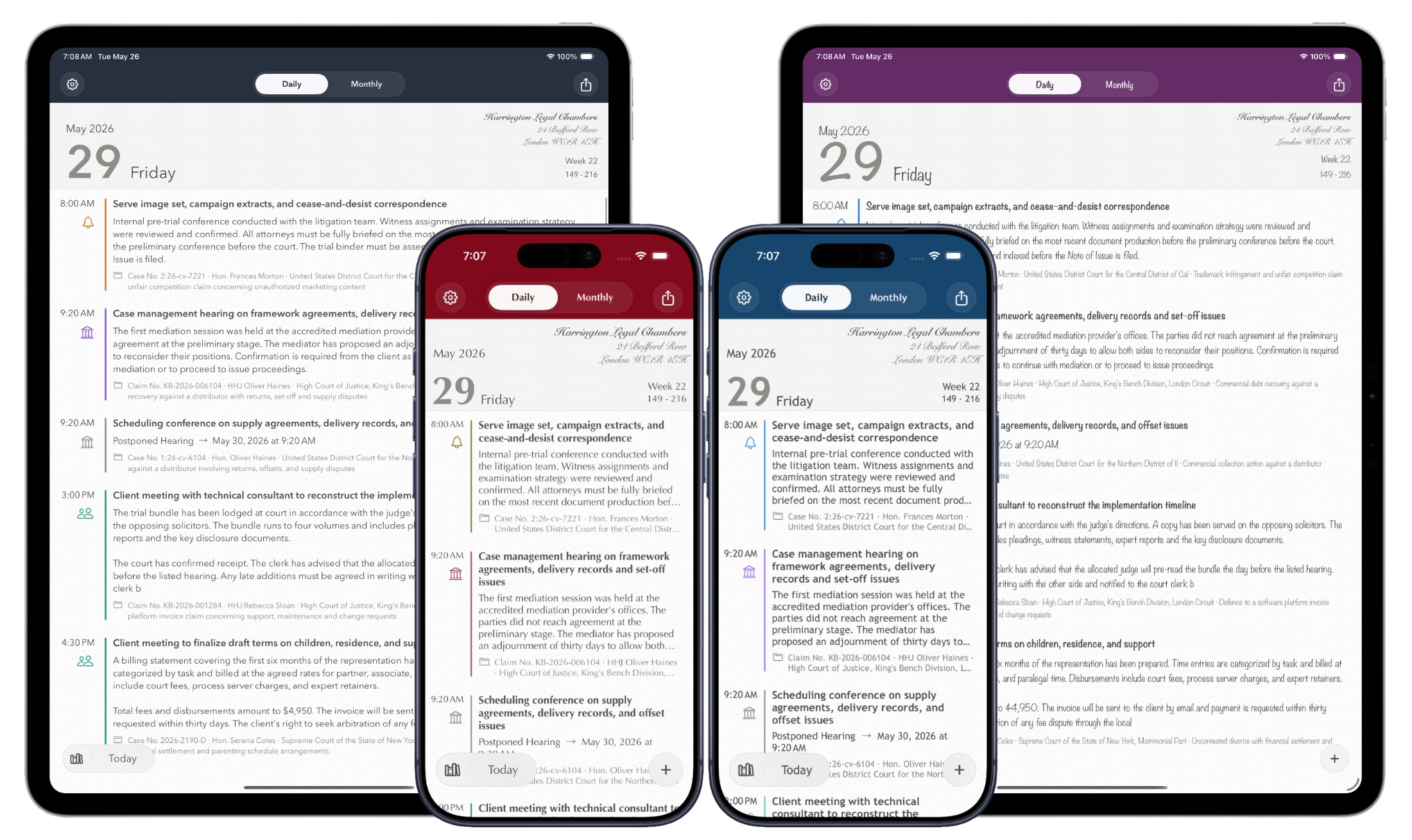
Counsel Planner offers four visual themes. Same data, same structure — completely different look. The choice is a matter of personal taste.
How to access the settings
Open Settings from the icon in the top right, then tap Appearance and Theme under the General section.
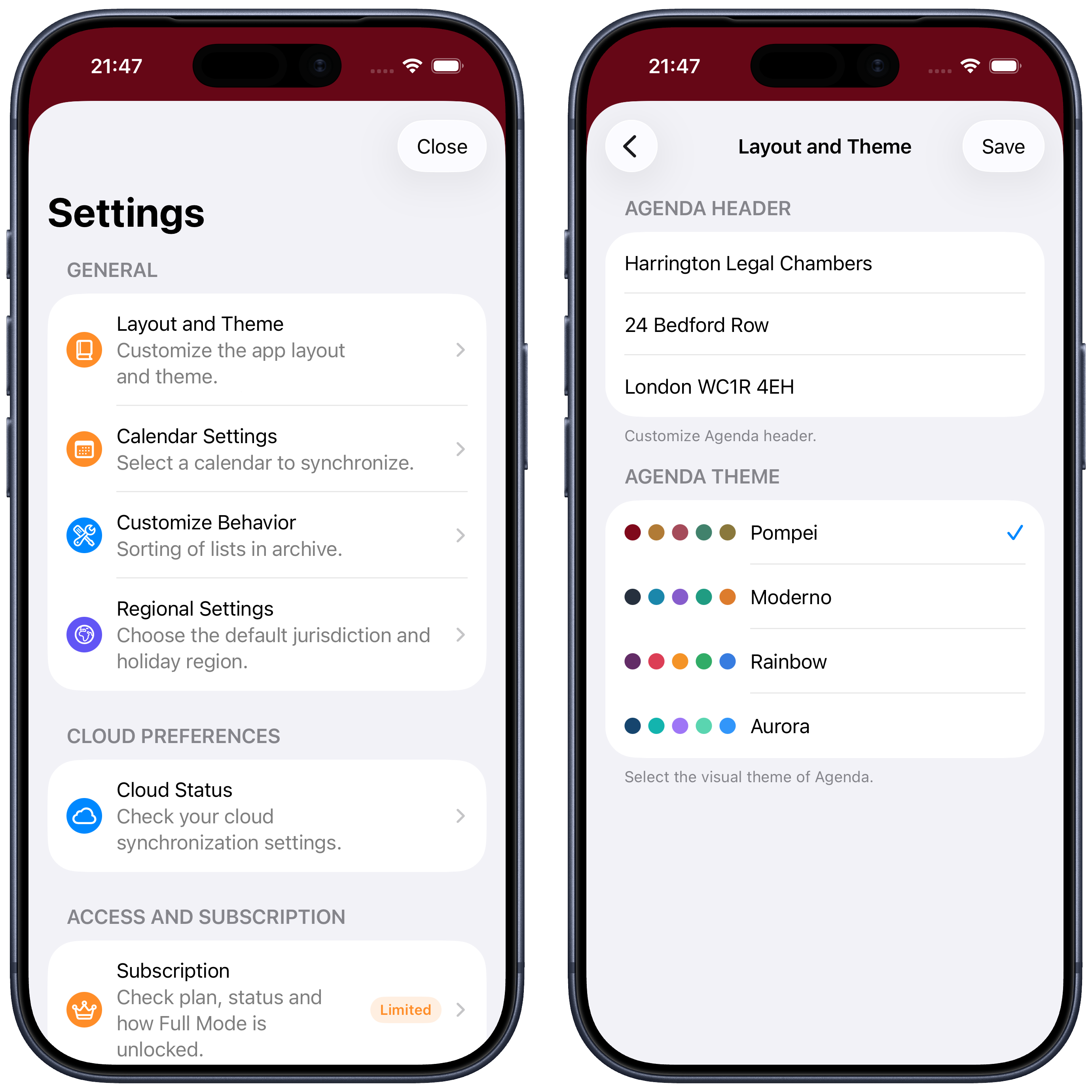
On this screen you’ll find two distinct sections:
- Agenda header — three lines of free text that appear in the header of the daily and monthly views, as well as in prints and exports. You can enter your firm name, address and contact details.
- Agenda theme — select the visual style from the four available options.
Tap Save in the top right to apply your changes.
The four themes
Pompei is the app’s main identity theme. It uses the Optima font and a warm palette inspired by the colours of Pompeii: deep red, ochre-brown, petrol green and olive green.
Moderno uses the Avenir Next font and a cooler, more contemporary palette with teal and blue tones. Same data, more restrained and minimalist look.
Arcobaleno brings a vivid, varied palette with bold tones that clearly distinguish each section of the agenda.
Aurora combines teal, green and light blue tones in a fresh, bright palette — halfway between the restraint of Moderno and the vibrancy of Arcobaleno.
Questions or something not working as expected? Write to us at support@counselplanner.app — we read everything and reply within one or two working days.