
Counsel Planner can keep your hearings and meetings in sync with Apple Calendar. Every event you save in the agenda appears automatically in the calendar of your choice — complete with title, date, time and all notes. Every time you edit the app, the calendar updates accordingly. If you’re looking to sync deadlines with Reminders, you’ll find everything in the dedicated Apple Reminders guide.
First: create a dedicated calendar
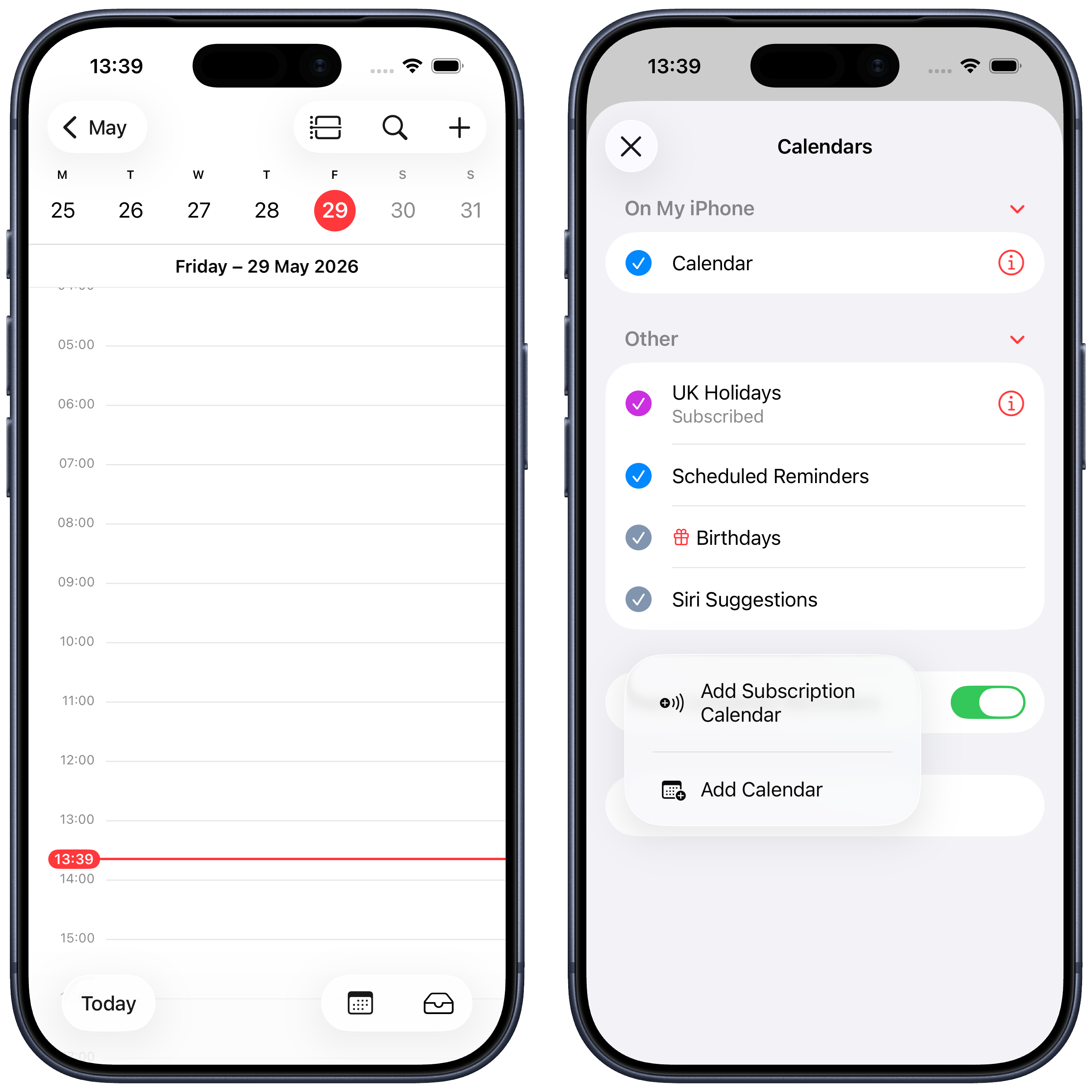
To keep professional entries separate from personal ones, we recommend creating a dedicated calendar in Apple Calendar. Open the app, tap the three dots in the top right, then Add Calendar.
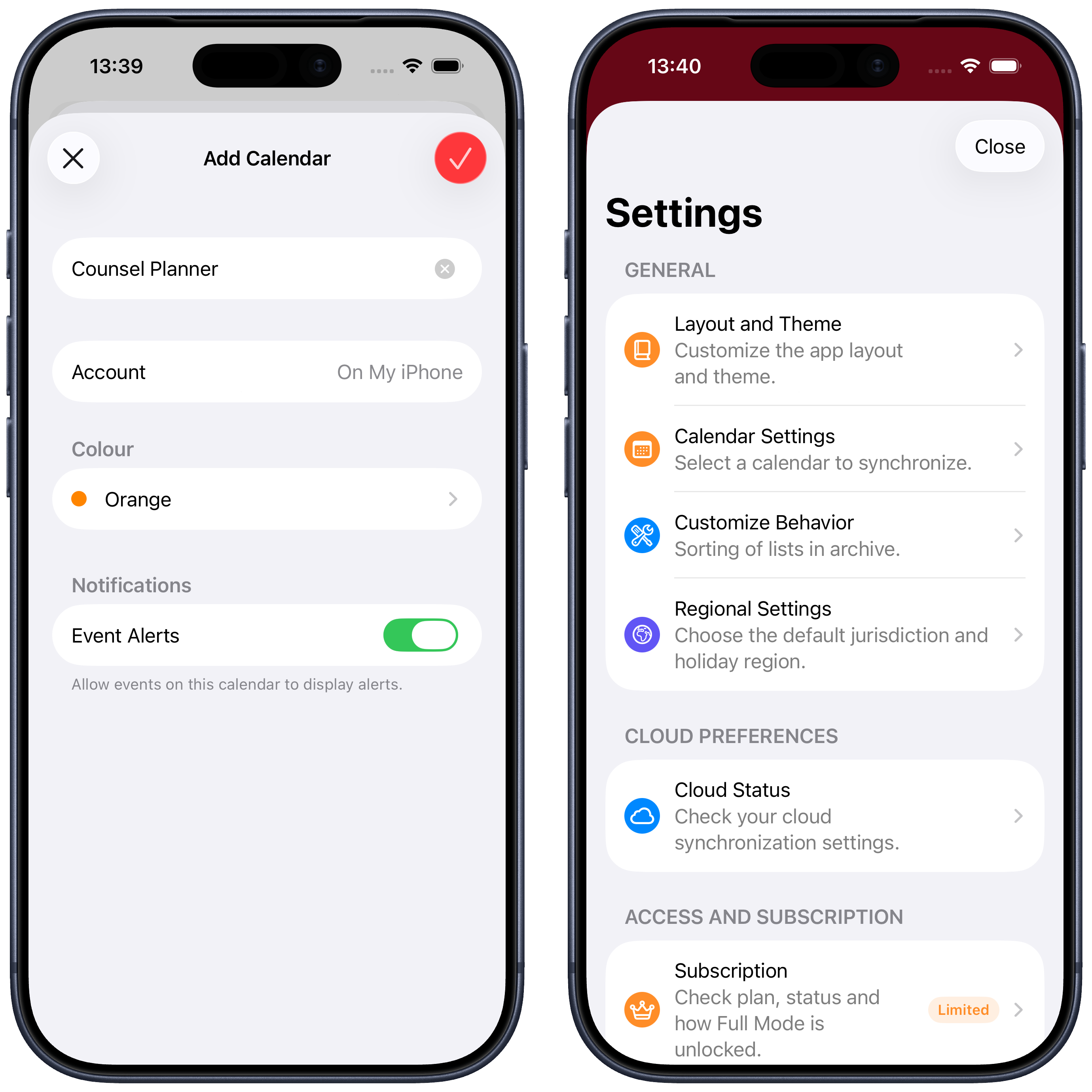
Give it a recognisable name — for example Counsel Planner — choose a colour and confirm. Once the calendar is created, go back to the app.
Open Calendar Settings
In Counsel Planner, open Settings from the icon in the top right and tap Calendar Settings.
Enable sync and grant permission
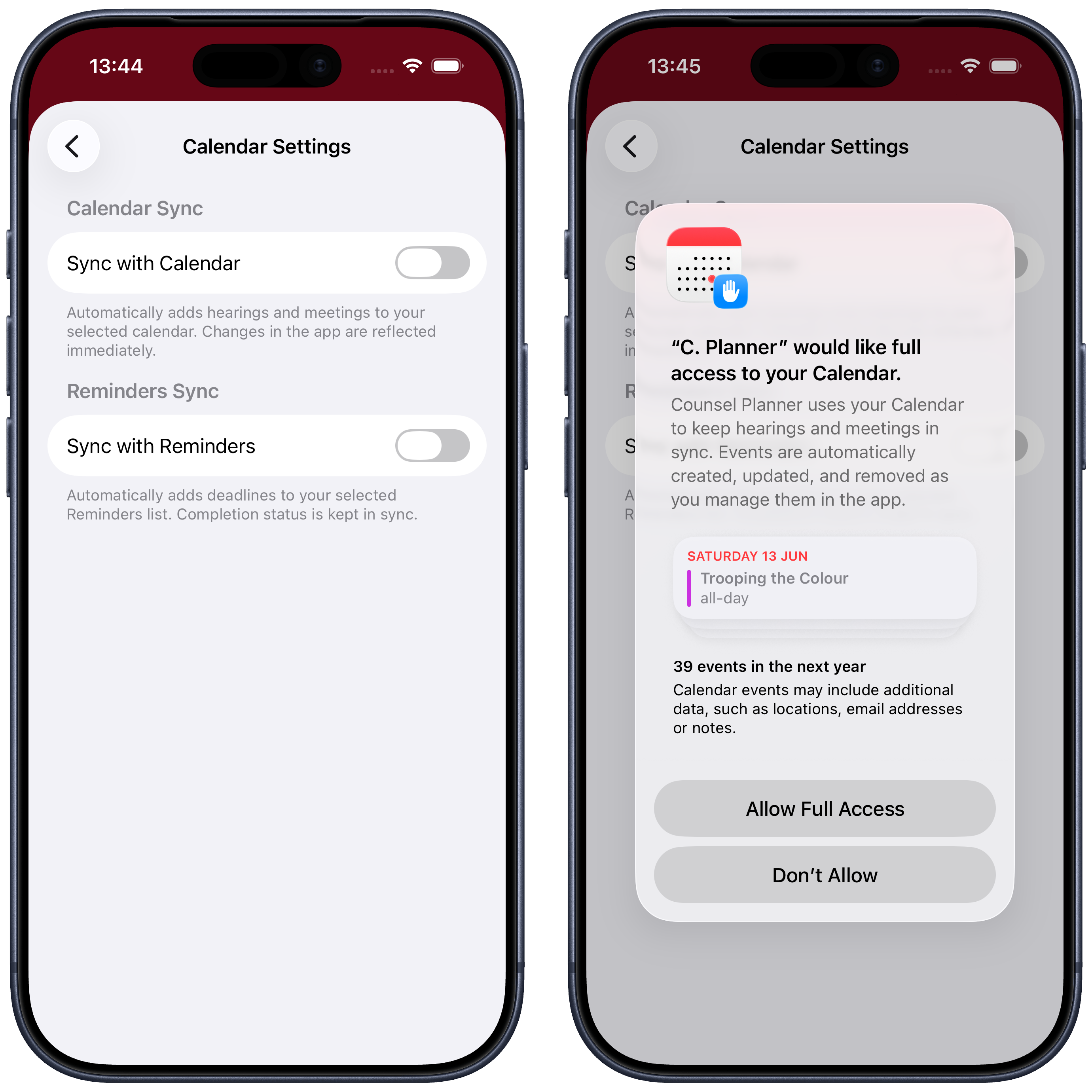
In the Calendar Settings screen you’ll find two distinct sections: one for Calendar and one for Reminders. Enable the Sync with Calendar toggle.
The first time you do this, a permission request will appear: tap Allow Full Access to let the app read and write to your calendar. Without this permission, sync cannot work.
If you accidentally denied the permission, you can go to iOS Settings → Privacy & Security → Calendars at any time and enable full access for Counsel Planner.
Select the calendar
Once permission is granted, the app shows the available calendars. Select the one you just created — in our example Counsel Planner — and tap Save.
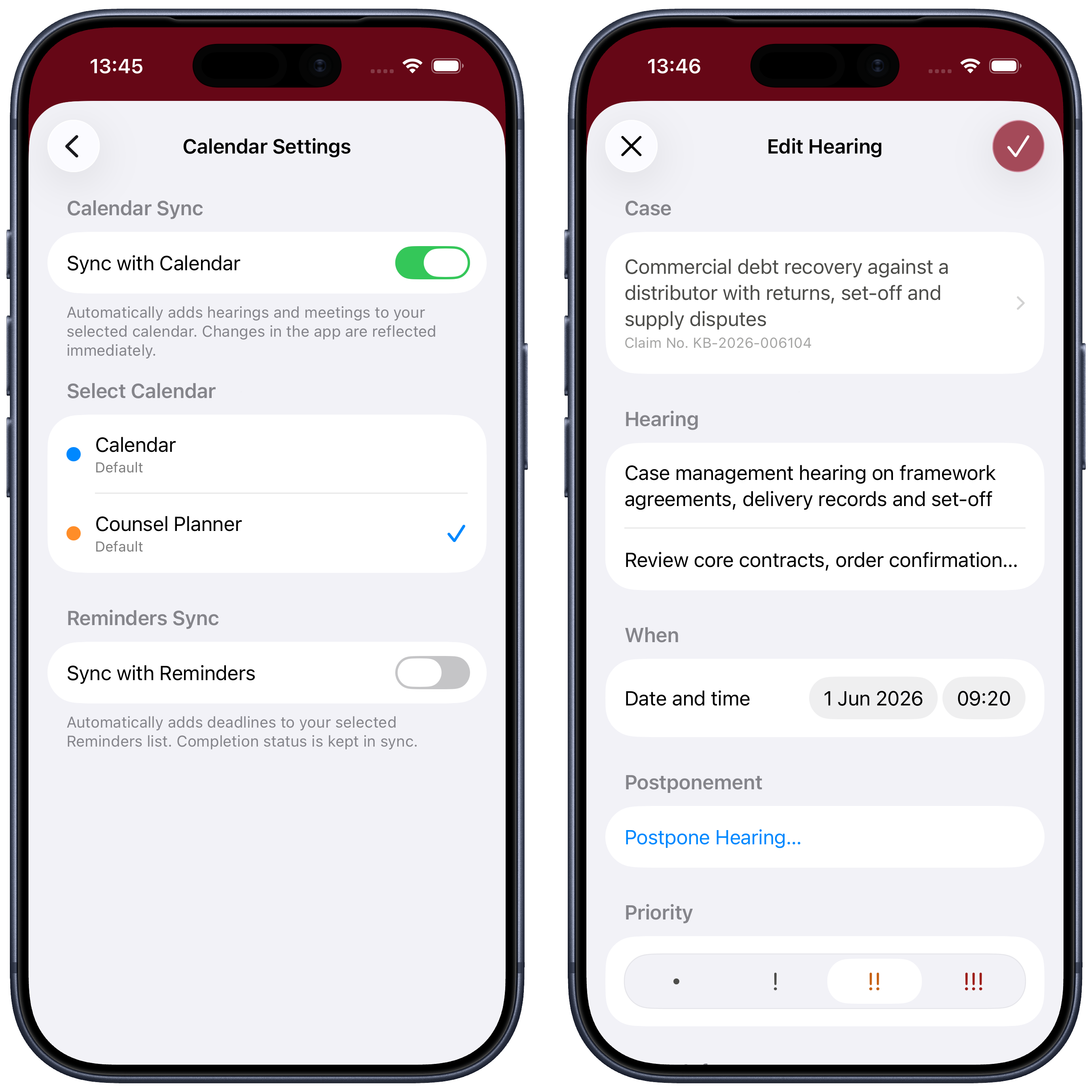
From this point on, every hearing and meeting you save in the agenda will be automatically added to that calendar.
Events appear in Apple Calendar
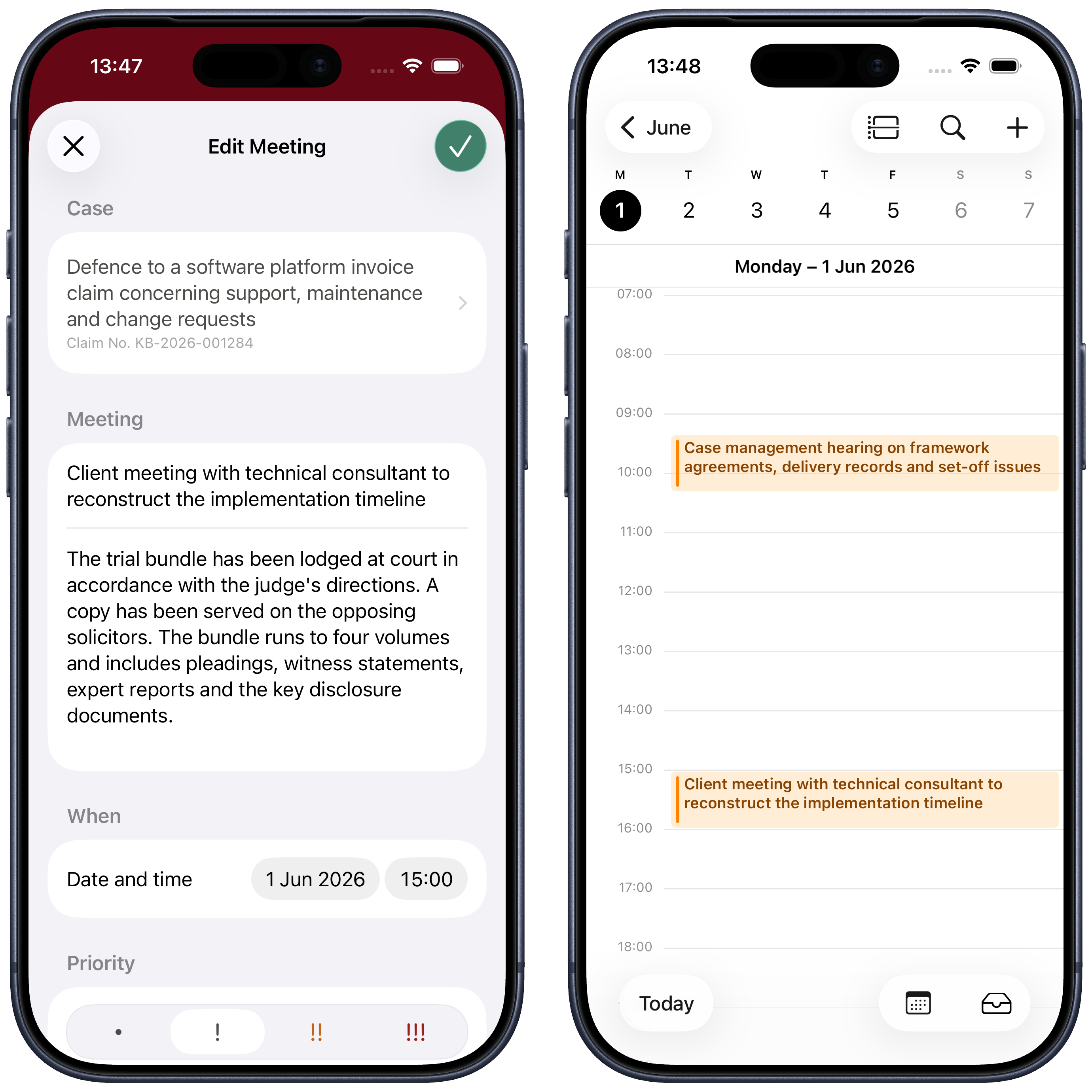
Save a hearing and a meeting in the app. Open Apple Calendar: you’ll find both on the correct day, with the event title clearly visible and the colour of the calendar you chose.
Full details in the event notes
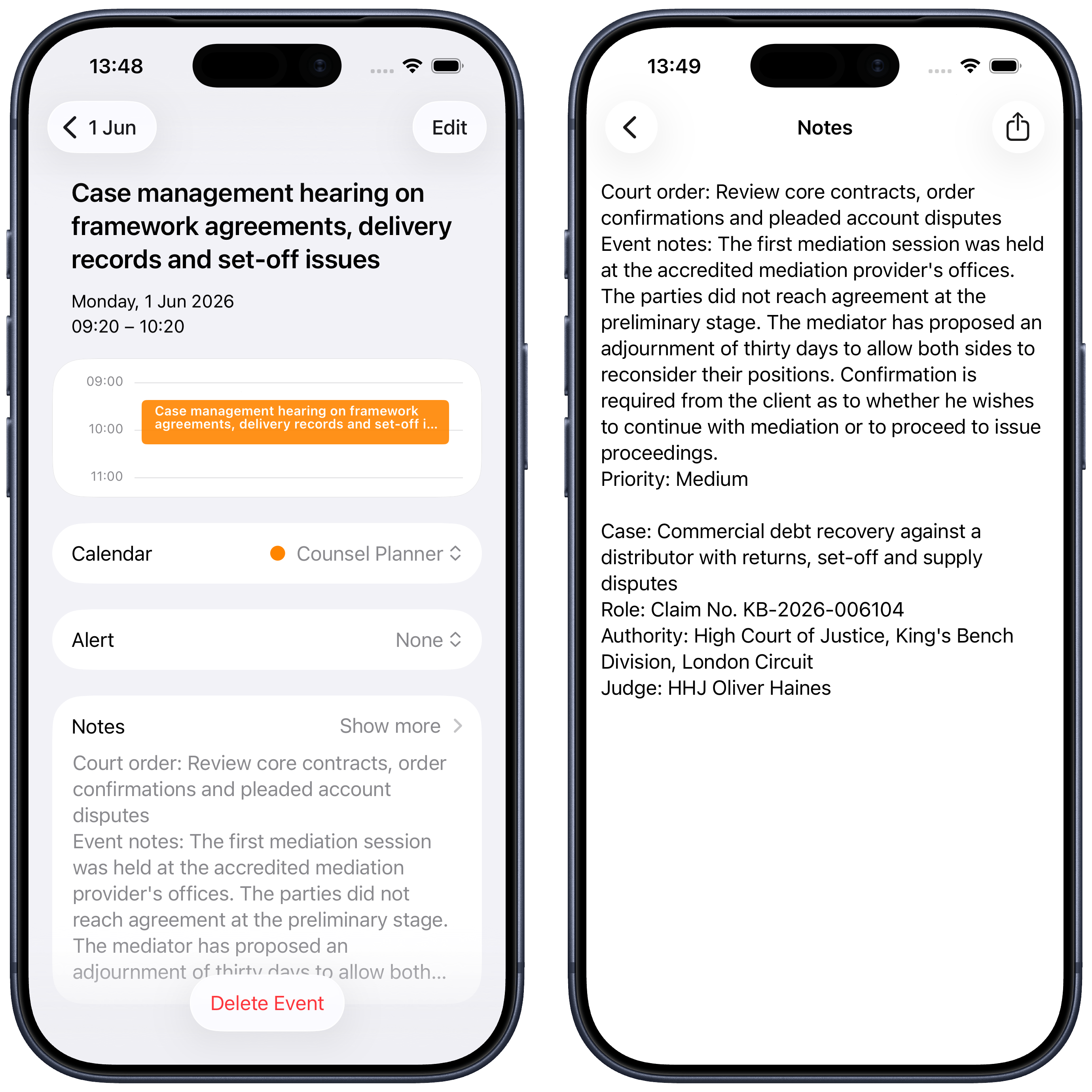
Open one of the events in Calendar: in the Notes field you’ll find a complete summary generated automatically by the app. For each hearing, the notes include the order, event notes, priority, matter, case reference, court and judge.
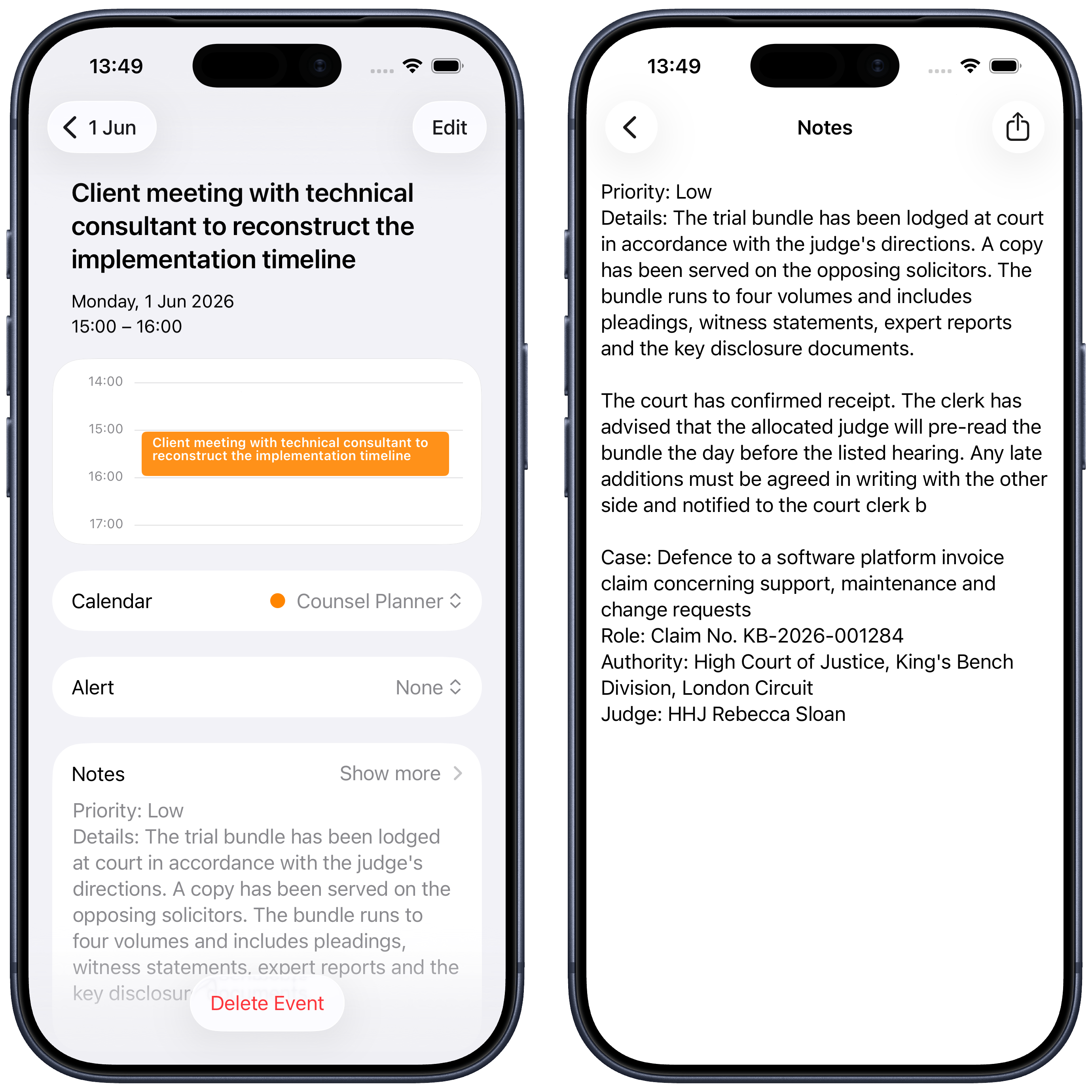
The same applies to meetings: title, details, linked matter, court and judge are all present in the event notes.
Share the calendar with colleagues
If you work in a team, you can share the calendar with them directly from Apple Calendar — via iCloud, Google or any other compatible provider. This way, hearings and meetings you enter in the agenda will be visible to everyone sharing that calendar, with no additional apps required on their end.
Questions or something not working as expected? Write to us at support@counselplanner.app — we read everything and reply within one or two working days.